 Procreate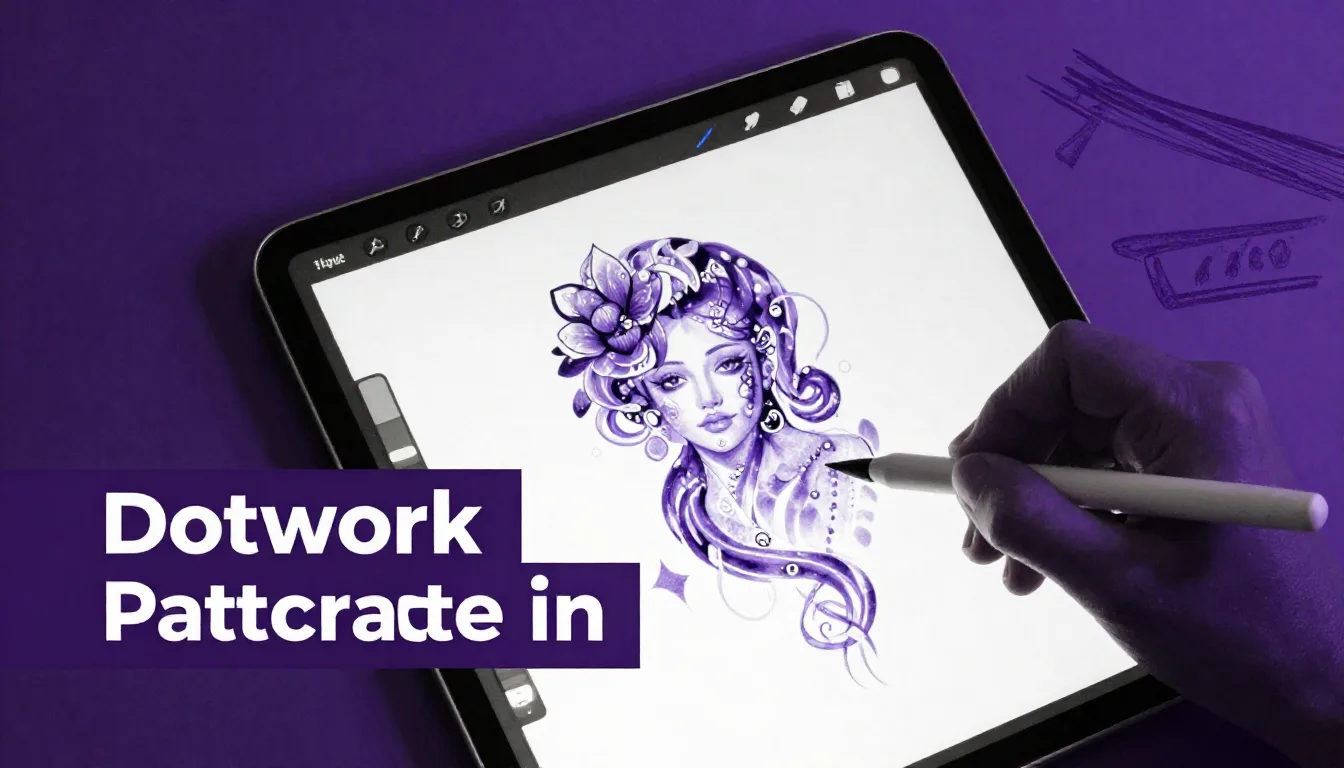
Creating flawless dotwork tattoo patterns in Procreate can elevate your digital flash sheets and client mockups to a professional level. Whether you are designing intricate sacred geometry or soft pepper shading, mastering stippling techniques digitally saves time and allows for perfect precision. This comprehensive tattoo digital art guide will walk you through the essential tools and techniques to build stunning dotwork designs right on your iPad.
Setting Up Your Canvas for Tattoo Design
Before you lay down a single dot, your canvas needs to be optimized for print and stencil creation. Tattoo designs require high resolution to ensure every tiny detail translates perfectly when transferred to thermal paper or printed for a client's reference.
Resolution and Dimensions
Always start with a high DPI (Dots Per Inch). Set your canvas to at least 300 DPI, though 600 DPI is preferable for intricate dotwork. A standard size like 8x10 inches or 11x14 inches works well for most flash sheets. High resolution ensures that when you zoom in to place individual dots, they remain crisp without pixelation.
Color Profile Setup
If you plan to print your designs for physical portfolios, set your color profile to CMYK. However, if your primary goal is sharing on Instagram or building a digital portfolio, RGB is the way to go. For dotwork, which relies heavily on stark contrasts, working in purely black and white initially helps you focus entirely on value and density.
Choosing the Right Stippling Brushes
The secret to authentic-looking dotwork tattoo patterns in Procreate lies in your brush selection. While you can manually place every single dot with a hard round brush, using specialized stippling brushes will dramatically speed up your workflow.
Manual vs. Automated Stippling
For fine details and edges, manually placing dots using the native Technical Pen or Studio Pen (found in the Inking set) gives you ultimate control. Ensure the StreamLine setting is adjusted to your liking to keep your hand steady. For larger areas of shading, automated stippling brushes—which scatter dots as you draw—are invaluable. You can customize the scatter and spacing settings of default brushes or find specialized sets.
If you are looking for professional-grade assets, the ProcreateTools app offers an incredible selection of premium stippling and whip shading brushes designed specifically for tattoo artists.
Pro Tips for Authentic Dotwork
- Vary Dot Size: Real tattoos rarely have perfectly uniform dots due to skin texture and needle variations. Slightly adjusting your brush size as you work adds organic realism.
- Build Up Slowly: Treat digital dotwork like real tattooing. Start with a light, sparse layer and slowly build density in the darkest areas.
- Use Clipping Masks: When shading within a specific shape, use clipping masks to keep your stippling strictly confined to the intended area without messy overlaps.
Creating Geometric Dotwork Patterns
Geometric tattoos rely heavily on perfect symmetry and precise dot placement. Procreate’s native drawing guides make creating these complex mandalas and repeating patterns surprisingly intuitive.
Utilizing Drawing Assist
Turn on the Drawing Guide via the Canvas menu and select Symmetry. Depending on your design, choose Radial or Quadrant symmetry. Once Drawing Assist is active on your layer, any dot you place will mirror across the axes perfectly. This is essential for creating the mesmerizing, kaleidoscopic effects seen in modern geometric dotwork.
Building Mandalas with Stippling
Start by outlining your primary geometric shapes using solid lines. Then, switch to your stippling brush to fill the negative space or create gradients radiating from the center. The contrast between solid, crisp linework and the soft texture of stippled gradients creates a striking visual dynamic that is highly sought after in tattoo art.
Mastering Gradients and Pepper Shading
Pepper shading, or whip shading, is a technique where dots transition from dense and dark to sparse and light, creating a smooth gradient. Digitally replicating this requires an understanding of pressure and spacing.
Pressure Sensitivity Adjustments
Adjust your Apple Pencil's pressure curve to require a slightly firmer touch. This mimics the physical resistance of a tattoo machine and gives you better control over the density of your dots. When creating a gradient, start with heavy pressure (if using a dynamic brush) or dense manual dots at the base, and gradually lighten your touch or space the dots further apart as you move outward.
Layer Opacity Tricks
A great digital trick is to do your densest shading on one layer, and your lighter, scattered dots on a separate layer above it. You can then slightly lower the opacity of the top layer to create a softer, more blended transition that mimics healed tattoo ink settling into the skin.
Exporting for Stencils and Portfolios
Once your masterpiece is complete, you need to export it correctly. A fantastic procreate tattoo tutorial isn't complete without covering how to get the design off the iPad and onto the skin (or portfolio).
Creating Clear Stencils
Tattoo stencils need high contrast. If your design has soft dotwork gradients, you may need to create a separate "stencil layer" where you outline the main shapes and mark the boundaries of the shaded areas, rather than printing the entire stippled gradient, which can smudge in a thermal copier. Export this stencil layer as a high-resolution JPEG or PDF.
Frequently Asked Questions
Can I make my own stippling brush in Procreate?
Yes! You can duplicate a standard hard brush, open the Brush Studio, and dramatically increase the 'Spacing' under the Stroke Path settings. Adjusting the 'Scatter' in the Shape settings will also help create a randomized dot pattern.
Why do my dots look blurry when I zoom in?
This is usually due to a low canvas resolution. Always start your tattoo designs at 300 DPI or higher to ensure your individual dots remain crisp and sharp, no matter how close you zoom in.
Is it better to place dots manually or use a scatter brush?
It depends on the area. For precise edges, outlines, and very tight details, manual placement is best. For large areas of gradient shading or filling backgrounds, scatter brushes will save you hours of work while still looking great.
Mastering dotwork tattoo patterns in Procreate takes a bit of patience, but the digital workflow offers unmatched precision and flexibility for modern tattoo artists. To instantly upgrade your digital flash creation, be sure to check out the ProcreateTools app, where you can download professional stippling brush sets, geometric stamps, and more resources to streamline your design process.