 Procreate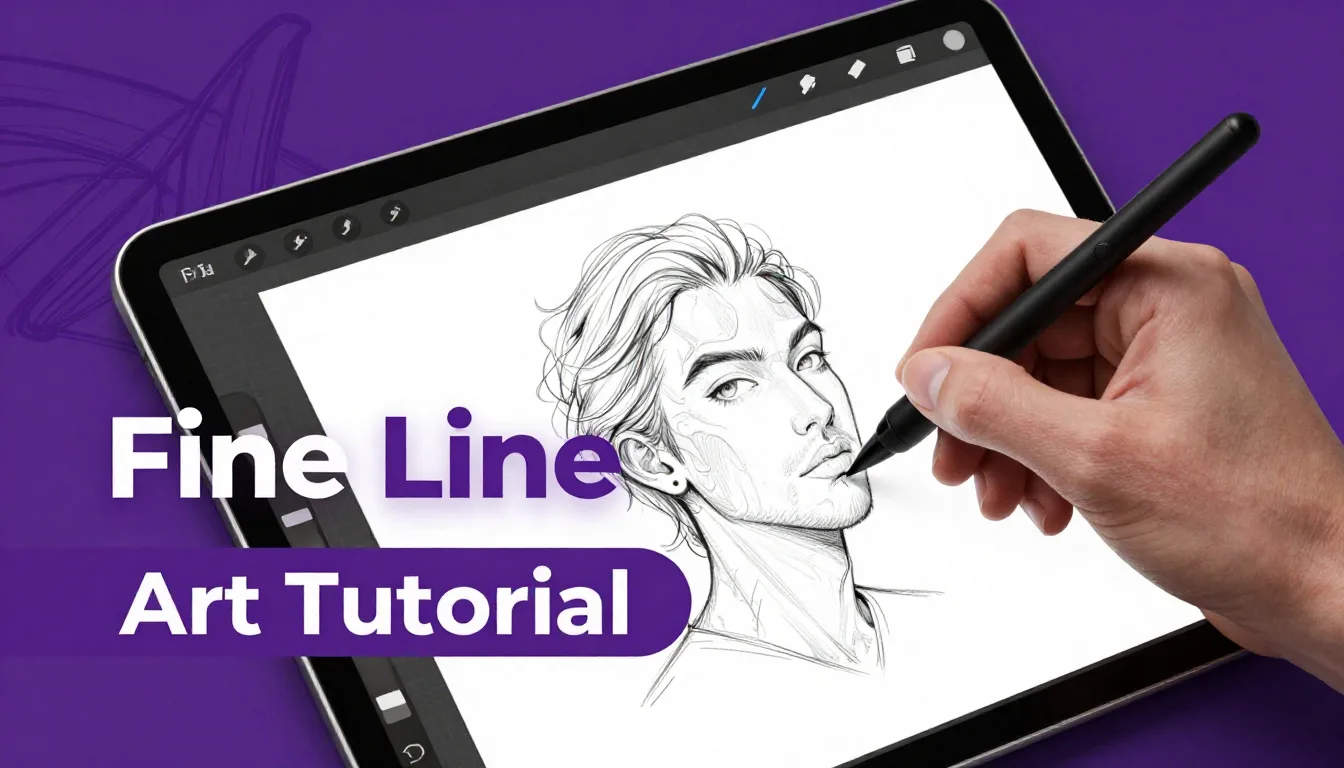
Fine line tattoo art is taking the world by storm, characterized by its delicate details, minimalist aesthetic, and precision. If you’ve ever wanted to design these intricate, single-needle style pieces digitally before they hit the skin, your iPad and Apple Pencil are the perfect studio. This comprehensive fine line tattoo art guide will walk you through the essential techniques and settings to create stunning, print-ready digital tattoo designs directly in Procreate.
Setting Up Your Procreate Tattoo Canvas
The foundation of any great digital art piece is the canvas, and for tattoo designs, resolution is non-negotiable. When creating a procreate tattoo tutorial project, you need crisp, clear lines that translate perfectly to a stencil.
Start by creating a custom canvas. A standard size of 8 x 10 inches at 300 DPI (Dots Per Inch) is ideal. This ensures your artwork remains sharp whether you are printing it small for a wrist placement or larger for a forearm piece. A high DPI is critical because fine line tattoo art relies entirely on the clarity of a single stroke; any pixelation will ruin the delicate illusion of the design.
Choosing the Right Brushes for Fine Lines
In traditional tattooing, fine line work is often done with a single needle (1RL) or very small tight liners (like a 3RL). To replicate this in Procreate, you need brushes that offer consistent, unwavering lines without aggressive taper or opacity drops.
The native "Technical Pen" or "Syrup" brushes found in the Inking folder are great starting points. However, to truly master this style, you’ll want to adjust the brush settings. Go into the Brush Studio, navigate to the "Apple Pencil" settings, and turn the Opacity down to zero under the Pressure setting. This ensures your line remains solid black regardless of how hard you press, mimicking the steady flow of ink from a tattoo machine.
Pro Tips for Crisp Linework
- Streamline is your friend: In the Brush Studio, increase the "Streamline" setting under Stabilization to about 30-50%. This smooths out any natural hand jitters, giving you those impossibly perfect, sweeping curves characteristic of fine line tattoo art.
- Keep your hand planted: Anchor your palm on the iPad screen. Rely on your wrist and elbow to pivot rather than drawing purely from your fingers.
- Draw from the shoulder: For long, continuous lines, lock your wrist and pull the line using your entire arm for maximum stability.
Mastering Precision and Composition
Fine line tattoo art thrives on negative space and elegant composition. Because you aren't relying on heavy shading or bold colors to create impact, the placement and flow of every single line matter immensely.
Start with a rough sketch using a distinct color, like light blue or red, on a separate layer. This will be your blueprint. Once your composition is balanced, lower the opacity of your sketch layer, create a new layer on top, and begin your final linework in black. When executing your final lines, try to complete each curve or segment in a single, confident stroke. Overlapping lines or "hairy" sketching techniques will destroy the clean, single-needle look.
Whip Shading and Stippling in Procreate
While fine line tattoos are predominantly linework, they often incorporate subtle textures to add depth without overwhelming the design. Two incredibly popular techniques in modern tattooing are whip shading (pepper shading) and stippling (dotwork).
To replicate stippling, you can manually place individual dots, taking care to cluster them closer together for darker areas and spacing them out for lighter areas. For a more efficient workflow, many artists use specialized dotwork brushes that scatter dots based on pen pressure. Whip shading, which looks like a gradient of tiny dots fading out from a solid line, can be achieved by using a customized brush with a scattered shape and rapid, flicking motions with your Apple Pencil, lifting off the screen at the end of the stroke.
Creating Stencil-Ready Artwork
A beautiful digital drawing is only half the battle; it must be usable by a tattoo artist. A proper tattoo stencil is a high-contrast line drawing with no shading, acting as a map for the needle.
When your design is complete, hide any sketching layers, background colors, and shading layers. You should be left with only your solid black linework on a transparent or pure white background. Export your image as a high-quality JPEG or PNG. This clean, high-contrast image is exactly what a thermal printer needs to produce a perfect stencil for the skin.
Frequently Asked Questions
What iPad is best for Procreate tattoo design?
Any iPad that supports the Apple Pencil (1st or 2nd generation) will work beautifully. However, the iPad Pro models (11-inch or 12.9-inch) offer laminated displays and ProMotion technology, providing the most natural and lag-free drawing experience, which is highly beneficial for precise fine line work.
Can I make my own dotwork brushes in Procreate?
Absolutely! You can create custom stippling brushes by importing a single dot as the brush shape, then adjusting the "Spacing" and "Jitter" settings in the Stroke Path menu, and tweaking the "Scatter" in the Shape menu within the Brush Studio.
Why do my lines look pixelated when I zoom in?
Procreate is a raster-based program, meaning everything is made of pixels. If your lines look pixelated, your canvas resolution or DPI might be too low. Always ensure you are working at a minimum of 300 DPI for print-quality artwork.
How do I mirror designs for symmetrical tattoos?
Use Procreate's Drawing Guide feature. Go to Actions (wrench icon) > Canvas > turn on Drawing Guide > Edit Drawing Guide. Select "Symmetry" and choose your desired axis. Everything you draw on one side will perfectly mirror on the other.
Mastering fine line tattoo art digitally opens up a world of creative possibilities, allowing you to perfect your designs before they become permanent. If you're looking to elevate your workflow, be sure to check out the ProcreateTools app, where you can find an incredible selection of custom liners, stippling brushes, and whip-shading sets designed specifically for the digital tattoo artist.