 Procreate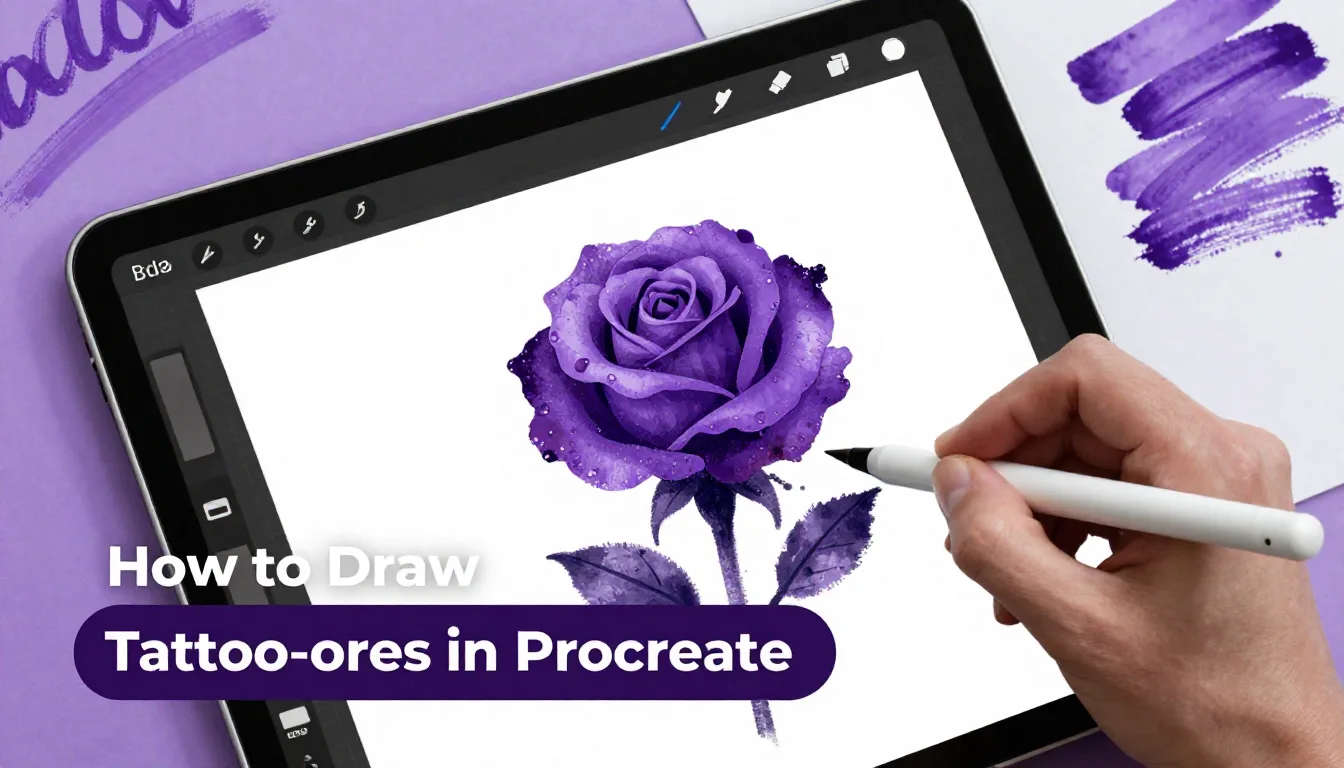
Tattoo artists and digital illustrators alike know that the classic rose is a foundational design in body art. Mastering the elegant curves, crisp linework, and soft shading of a tattoo-style rose in Procreate will dramatically elevate your portfolio. Whether you are prepping a stencil for a client or just creating striking digital art, learning how to draw tattoo roses digitally gives you the ultimate flexibility to tweak and perfect your designs.
Setting Up Your Procreate Canvas for Tattoo Art
Before you draw a single petal, setting up your canvas correctly is crucial for high-quality tattoo digital art. When designing for tattoos, you want to ensure your artwork is crisp enough to be printed as a stencil.
Canvas Dimensions and DPI
Always start with a high-resolution canvas. A standard size of 8x10 inches or 11x14 inches at 300 DPI (Dots Per Inch) is perfect. This resolution guarantees that when you print your design for a thermal stencil machine, the lines won't be pixelated. Go to your Procreate gallery, tap the plus icon, and create a custom canvas with these exact specifications.
Choosing the Right Brushes
For a traditional or neo-traditional tattoo rose, brush selection is everything. You'll need a solid, hard-edged brush for the linework (often called a "liner") and a smooth, textured brush for "whip shading" or soft gradients. The default 'Technical Pen' in the Inking section is a great starting point for lines, while the 'Soft Brush' in Airbrushing works well for smooth blends. If you want specialized tools, checking out the premium brush packs in the ProcreateTools app can save you hours of tweaking default settings.
Sketching the Rose Framework
A beautiful rose starts with a solid geometric foundation. Don't rush straight into detailed petals; build the structure first.
The Core Shape
Create a new layer and pick a light blue or red color for your sketch—this mimics the traditional colored pencils tattoo artists use for drafting. Draw a simple circle to define the overall size of the rose. Inside the center of that circle, draw a smaller oval or a small spiral. This inner shape will be the tightly furled core of the rosebud.
Mapping the Petals
From the center core, start mapping out the petals. Tattoo roses typically follow an alternating, overlapping pattern. Imagine the petals wrapping around the center like layers of an onion. Draw the first three petals closely hugging the core. Then, add larger petals that flare outwards as they move toward the edge of your initial circle. Keep the edges dynamic—add slight dips and folds to the tips of the petals to give them an organic, lifelike feel. This is a vital step in any procreate tattoo tutorial; structure dictates the final flow.
Inking the Bold Outlines
Once your sketch is solid, it’s time to lay down the bold linework that defines classic tattoo art. In tattooing, bold lines hold over time, and translating that to digital art gives your piece that authentic tattoo flash look.
Line Weight and Hierarchy
Create a new layer above your sketch and reduce the opacity of your sketch layer so it's just barely visible. Switch to black and select your liner brush. The trick to a dynamic tattoo design is line hierarchy. Use a thicker line weight for the outer silhouette of the rose and the major overlapping edges of the large petals. Use a slightly thinner line weight for the inner folds and the delicate center core. This contrast in thickness immediately adds depth and readability to the design.
Smooth and Confident Strokes
If your lines feel shaky, don't worry. Procreate's 'StreamLine' (now found under Stabilization in the brush studio) is your best friend for tattoo digital art. Turn up the stabilization to around 30-50% for your liner brush. This will automatically smooth out the jitters in your hand, giving you those buttery, sweeping curves required for professional-looking flash.
Pro Tips
- Use the Symmetry Tool: If you are drawing a front-facing rose, turn on the Drawing Guide > Symmetry to ensure your outer petals are perfectly balanced.
- Check your Silhouette: Periodically fill your line art layer with black to see the overall shape. A good tattoo design should be recognizable just by its silhouette.
- Work in Layers: Keep your line art, shading, and highlights on separate layers. This makes it incredibly easy to change colors or adjust the shading without ruining your crisp lines.
Shading: Bringing the Rose to Life
Shading is where your flat line art transforms into a three-dimensional, striking piece of tattoo flash. Depending on your style, you might opt for smooth black-and-grey gradients or traditional "whip shading" (pepper shading).
Establishing the Light Source
Decide where your light is coming from before you start dropping in shadows. A top-down light source is standard and effective. With the light coming from above, the deepest shadows will be at the base of each petal where it tucks under the petal above it, and deep inside the core of the rose.
Applying the Shading
Create a new layer beneath your line art layer and set its blend mode to 'Multiply'. Using a soft brush or a specialized whip-shading brush, start adding black to the deepest recesses of the petals. Gradually fade the black out as you move toward the tips of the petals. Remember to leave the top edges of the petals completely unshaded (or white) to act as natural highlights. This high contrast between deep black and pure white is the hallmark of how to draw tattoo designs that pop.
Adding Leaves and Embellishments
A rose looks best when framed by supporting elements. Leaves and filigree help to balance the composition and make the design fit better on the body.
Drawing the Leaves
Tattoo rose leaves are typically sharp, serrated, and curve dynamically. Add a few leaves peeking out from behind the main body of the rose. When shading the leaves, use a solid black down one side of the center vein, fading out toward the edge, leaving the other side mostly open for contrast.
Final Details
To finish the piece, consider adding subtle embellishments like water droplets on the petals or small dots and sparkles around the outside of the design. These small touches add a layer of polish that elevates your work from a simple sketch to a finished portfolio piece.
FAQ
What is the best canvas size for designing tattoos in Procreate?
For most tattoo designs, an 8x10 inch or 11x14 inch canvas at 300 DPI is ideal. This ensures your artwork is high resolution and will print clearly when making stencils.
How do I get my lines perfectly smooth like real tattoo needles?
To get smooth, professional lines, adjust the 'Stabilization' or 'StreamLine' settings in your brush studio. Turning this up to 30-50% will help eliminate hand jitters and create clean, sweeping strokes.
Why does my shading look muddy instead of crisp?
Muddy shading usually happens when there isn't enough contrast. Ensure you have pure blacks in the deepest shadows and leave plenty of negative space (pure white or skin tone) for highlights. Avoid using too many mid-tones.
Mastering the digital tattoo rose takes practice, but with the right techniques and a solid understanding of line weight and shading, you can create stunning, professional-grade flash art. Don't forget to experiment with different textures and styles to find your unique voice. To speed up your workflow and get access to premium, tattoo-specific liners and whip-shading brushes, make sure to explore the resources available in the ProcreateTools app. Keep practicing, keep refining your layers, and your digital tattoo portfolio will stand out from the crowd.