 Procreate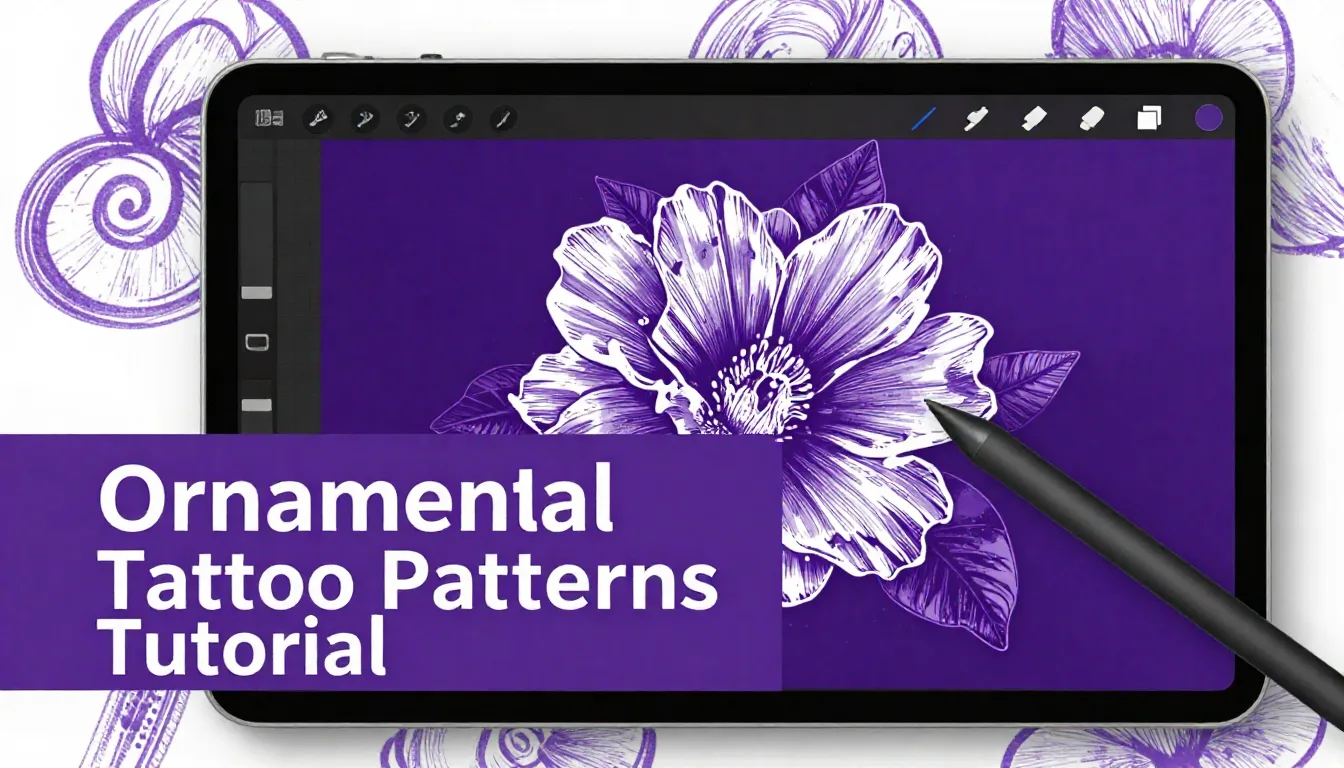
Creating intricate, perfectly balanced ornamental tattoo designs used to require hours of meticulous drafting with tracing paper and rulers. Today, your iPad is the ultimate studio companion, turning complex geometry and flowing mandalas into an accessible, highly refined process. Whether you are an established artist transitioning to digital or an apprentice building your portfolio, mastering these techniques will dramatically speed up your workflow and elevate the precision of your line work.
Understanding the Anatomy of Ornamental Tattoos
Ornamental tattooing draws heavy inspiration from architecture, henna, sacred geometry, and traditional decorative arts. Before diving into the canvas, it is crucial to understand the foundational elements that make these designs work. A successful ornamental piece relies on a balance of bold, structural linework (often called the "bones" of the design) and delicate, finer details (the "filigree" or shading).
In digital art, this translates to utilizing different brush weights deliberately. When starting your ornamental tattoo patterns tutorial journey, begin by defining the primary shapes—circles, diamonds, or teardrops—using a solid, monoline brush. Once the framework is set, switch to a finer liner for the intricate stippling and internal decorations. This contrast is what gives ornamental work its striking readability on the skin.
Setting Up Your Procreate Canvas for Precision
Precision is everything in geometric and ornamental styles. A sloppy canvas setup will lead to pixelated lines when you finally print your stencil. For tattoo digital art, always start with a high-resolution canvas. A standard 8x10 inch canvas at 300 DPI is the absolute minimum, but bumping that up to 400 DPI gives you even crisper lines for those micro-details.
Activating the Drawing Guide
Your best friend for any procreate tattoo tutorial is the Drawing Guide. Go to the Actions menu (the wrench icon), tap Canvas, and toggle on 'Drawing Guide'. Then, tap 'Edit Drawing Guide'. For ornamental work, you have two primary weapons:
- Symmetry: Specifically, Radial Symmetry is essential for mandalas. It mirrors your strokes across multiple axes simultaneously, ensuring mathematical perfection.
- 2D Grid: Perfect for creating repetitive, linear band tattoos or structural geometric backgrounds.
Remember to ensure 'Assisted Drawing' is turned on for your active layer, otherwise, the symmetry guide won't affect your strokes.
Building Your Design: From Center to Edge
When working with radial symmetry, the most effective approach is to build your design from the inside out. Start at the very center of your canvas. Create a small, foundational shape—like a lotus petal or a simple diamond. As you move outward, allow each new layer of design to cradle or interact with the previous one.
A common mistake in digital ornamental design is overcrowding. Because zooming in makes it so easy to add tiny details, artists often overcomplicate the pattern. Always zoom out to 100% frequently to check the readability. Remember, what looks great blown up on an iPad screen needs to translate well to the physical constraints of human skin over time. Leave enough negative space for the tattoo to breathe and age gracefully.
Pro Tips
- Use the QuickShape Tool: Draw a circle or line and hold your pencil down at the end of the stroke. Procreate will snap it into a perfect geometric shape. Tap the screen with a second finger to snap it to a perfect circle or 15-degree angle.
- Layer Management: Keep your structural lines, fine details, and shading/stippling on entirely separate layers. This makes adjustments and stencil printing infinitely easier.
- Stippling Brushes: Instead of dotting manually, utilize specialized stippling brushes to create smooth, consistent whip-shaded gradients in seconds.
Creating Flow and Fit for the Body
A flat, perfect mandala is beautiful, but a tattoo must contour to the human body. One of the most powerful techniques in any tattoo digital art guide is using a 3D model or a photograph of the client's body part as a base layer. Drop the opacity of the photo, create a new layer above it, and begin sketching.
Use Procreate’s Transform tool (the arrow icon) set to 'Warp' to gently manipulate your flat ornamental designs so they flow with the natural lines of the musculature. A design that curves with the forearm or wraps elegantly around a calf will always look more professional than a rigid, flat stamp placed directly onto the skin.
Refining Lines and Preparing the Stencil
Once your design is complete, it’s time to clean it up for the stencil printer. Creating a flawless stencil is the final, crucial step. Hide any background layers, sketch layers, or shading layers that you don't want to run through the thermal copier. You should be left with only your crisp, black linework.
To ensure maximum contrast, you can duplicate your final linework layer and merge it down a few times. This makes the black lines denser and darker, which translates to a much stronger purple stencil. Export your final image as a high-quality JPEG or PDF, and you are ready to apply it to the skin.
Frequently Asked Questions
What are the best brushes for ornamental tattoo designs in Procreate?
For ornamental work, you need a smooth, untextured Monoline brush for the main structures, a fine-tipped liner for details, and a stipple or whip-shading brush for the dotwork gradients. Avoid highly textured or pressure-sensitive opacity brushes for your stencil linework.
How do I stop my lines from looking pixelated when I print my stencil?
Pixelation is usually caused by working on a canvas with a DPI that is too low. Always ensure your canvas is set to at least 300 DPI (dots per inch) before you start drawing. Additionally, avoid resizing your linework up (making it larger) using the transform tool after it's drawn, as this degrades quality.
Can I save my custom symmetry grids for future use?
While you cannot save the grid settings as a preset file, a great workaround is to create a blank template canvas with your preferred Radial or Symmetry guides already set up and Assisted Drawing toggled on. Just duplicate this template file from your gallery whenever you start a new ornamental piece.
How do I achieve perfect curves in ornamental designs?
Utilize Procreate's QuickShape feature. Draw an arc and hold your pencil still at the end of the stroke; it will snap into a smooth curve. You can then tap 'Edit Shape' at the top of the screen to manipulate the nodes and achieve the exact curve you need for your design.
Mastering these digital techniques will revolutionize how you approach complex geometric and decorative tattooing. To truly streamline your workflow, you need the right tools at your disposal. Download the ProcreateTools app today to access a massive library of resources, including free custom brush sets designed specifically for tattoo artists, perfect stippling brushes, and pre-made ornamental stamp packs that will save you hours of drafting time.