
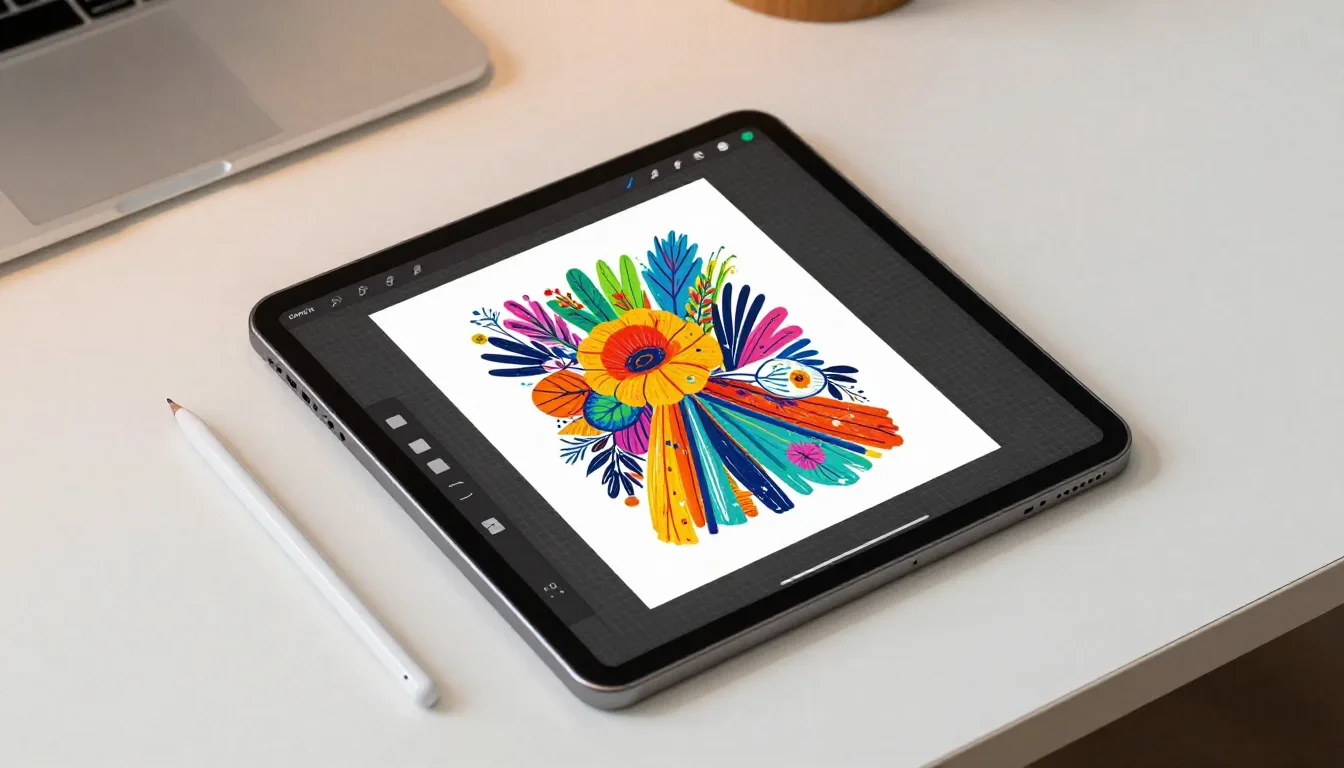
Procreate is an incredibly powerful digital art tool, but many artists only scratch the surface of its capabilities. Whether you've been using Procreate for years or just getting started, these 10 essential tips will transform your workflow, boost your productivity, and help you create better art faster. These are the techniques professional digital artists use daily—techniques that separate hobbyists from pros.
1. Master Quick Menu Customization
The Quick Menu is your secret weapon for lightning-fast workflow, but most artists never customize it beyond the defaults. Access it by tapping with four fingers on your canvas, and customize it in Settings → Gesture Controls → Quick Menu.
What to Include in Your Quick Menu
Add your most-used actions: Flip Horizontal (for checking proportions), Liquify (for quick adjustments), Copy and Paste (for duplicating elements), and your favorite blending modes. Customize it for your specific workflow—portrait artists might prioritize different tools than landscape painters or illustrators.
Pro tip: Create different Quick Menu configurations for different types of projects by using Procreate's gesture settings, then screenshot your optimal setups for easy recreation when needed.
2. Use Reference Images the Right Way
Procreate's Reference Canvas is far more powerful than simply importing an image. Access it via Actions → Canvas → Reference, and discover features most artists overlook.
Advanced Reference Techniques
You can resize, rotate, and position your reference image anywhere on screen, even overlapping your canvas. Use the opacity slider to make your reference semi-transparent and overlay it directly on your work for accurate tracing when needed. Enable Grid to align elements precisely.
The Color Picker works directly on Reference images—just tap and hold on your reference to sample colors without switching between apps. This streamlined color matching saves enormous time when working from photo references.
3. Leverage Layer Blend Modes Like a Pro
Blend modes transform how colors interact between layers, creating effects impossible with normal painting. Tap the "N" next to any layer to reveal blend mode options, but understanding which modes to use when is the real skill.
Essential Blend Modes and Their Uses
Multiply: Perfect for shadows and darkening. Paint highlights on a Multiply layer to deepen colors without muddying them. This is the go-to for adding dimension quickly.
Add or Screen: Ideal for highlights and light effects. Create a new layer, set it to Add, and paint with white or light yellow for instantly glowing highlights and magical lighting effects.
Overlay: Boosts color saturation and contrast simultaneously. Use it for adding vibrant color washes over finished linework, or for unifying color schemes across complex illustrations.
Color: Changes only the hue, preserving the underlying values. This allows you to completely change an object's color without redrawing shadows and highlights—essential for client revisions and color exploration.
4. Master the Transform Tool's Hidden Features
The Transform tool (arrow icon) does far more than simple resizing. Understanding its full capabilities gives you precise control over every element in your artwork.
Advanced Transform Techniques
Uniform Scaling: Use two fingers while dragging to scale proportionally. This prevents accidental distortion when resizing elements.
Freeform vs. Uniform vs. Distort: Switch modes at the bottom of the screen. Freeform allows independent width/height adjustment, Uniform maintains proportions, and Distort lets you grab individual corners for perspective effects.
Snapping: Enable Snapping in settings to automatically align layers to canvas edges and center points. Combined with Magnetics, this feature ensures pixel-perfect placement without manual measurement.
Interpolation: When downsizing artwork significantly, switch to Bilinear or Nearest Neighbor interpolation for different effects. Bilinear creates smoother results, while Nearest Neighbor preserves hard edges for pixel art styles.
5. Create Custom Color Palettes for Consistency
Professional artwork maintains consistent color schemes. Instead of picking colors randomly, build curated palettes that you can reuse and modify across projects.
Building Effective Palettes
Create a new palette by tapping the "+" in the Palettes panel. As you work, tap and hold on colors in your artwork to sample them, then tap an empty palette slot to save. Build palettes with 5-15 colors: base colors, shadows, highlights, and accent colors.
Name your palettes descriptively: "Portrait Skin Tones," "Sunset Landscapes," "Vintage Comics." This organization speeds up your workflow dramatically when starting new pieces in familiar styles.
Pro technique: Create a master palette document. Make a canvas filled with color swatches labeled by use (skin shadows, sky blues, foliage greens). Import this as a reference image in future projects for instant access to your proven color combinations.
6. Streamline Your Workflow with Procreate's Recording Feature
Every Procreate canvas automatically records your creation process as a time-lapse video. This isn't just for social media—it's a powerful learning tool and workflow asset.
Making the Most of Time-Lapse
Review your time-lapses to identify inefficient habits. Do you spend excessive time on details that get painted over? Do you redraw the same element repeatedly? These videos reveal workflow bottlenecks you might not notice while working.
Export your time-lapses via Actions → Video → Time-lapse Replay. Adjust playback speed—30 seconds works well for social media posts, while 60 seconds gives viewers more time to appreciate your process. Add your watermark or logo in video editing apps before posting.
7. Use Alpha Lock and Clipping Masks Strategically
These two features both constrain painting to existing content, but they work differently and serve different purposes. Understanding when to use each saves time and maintains layer organization.
Alpha Lock vs. Clipping Masks
Alpha Lock: Tap a layer, select Alpha Lock. Now you can only paint on existing pixels in that layer—perfect for adding shading or texture to a single element without creating new layers. Use it for quick adjustments and texture overlays.
Clipping Mask: Tap a layer and select Clipping Mask to constrain it to the layer directly beneath. This method preserves editability—shadows, highlights, and textures stay on separate layers, making revisions easier. Use clipping masks when you need to maintain flexibility.
Pro workflow: Base colors on one layer, shadows on a Multiply clipping mask above, highlights on an Add clipping mask above that. This non-destructive approach allows easy color changes and adjustments throughout the creative process.
8. Maximize Efficiency with Gesture Controls
Procreate's gesture controls can be fully customized to match your workflow. Most artists stick with defaults, missing massive efficiency gains from personalized gestures.
Essential Gesture Customizations
Access gesture settings in Actions → Prefs → Gesture Controls. Here are the most powerful customizations:
- Two-finger tap: Set to Undo for instant mistake correction without reaching for the undo button
- Three-finger swipe down: Keep at Clear (to clear the current layer) or change to Cut/Copy for faster element duplication
- Touch and hold: Set Eyedropper to "Off" if you prefer manual color picking, or keep it instant for quick sampling
- QuickMenu: Customize this extensively with your 10 most-used actions for one-tap access
Experiment with different gesture configurations. What works for one artist may feel awkward to another—the key is customizing to match your natural hand movements and workflow patterns.
9. Optimize Canvas Settings for Better Performance
iPad performance varies by model, and Procreate adjusts capabilities accordingly. Understanding these limitations prevents frustration and helps you work within your device's sweet spot.
Layer Count and Canvas Size
Larger canvases allow fewer layers. If you're constantly hitting layer limits, reduce canvas dimensions or work at lower DPI. For work destined for Instagram, 2400x3000px at 300 DPI provides excellent quality while allowing more layers than 4000x5000px canvases.
Merging Layers Strategically
When you hit layer limits, merge completed elements before adding new ones. Pinch two layers together to merge them, or use Merge Down from the layer menu. Before merging, duplicate your file as a backup in case you need to make changes later.
Using Layer Groups
Group related layers to organize complex projects. Swipe right on multiple layers to select them, then tap Group. Groups can be renamed, locked, and have blend modes applied to all layers simultaneously—essential for managing illustrations with dozens of elements.
10. Harness the Power of Selection Tools
The Selection tool offers far more than simple copy-paste functionality. Mastering selections gives you surgical precision over every aspect of your artwork.
Advanced Selection Techniques
Automatic Selection: Tap Automatic, then tap any color to select all similar pixels. Adjust threshold by sliding left or right to expand or contract the selection. Perfect for changing background colors or isolating subjects.
Color Fill Selections: Make a selection, then use ColorDrop to fill it perfectly. This works better than painting within selections, ensuring complete coverage without gaps.
Feathering: After making a selection, slide left or right to feather edges. Feathering creates soft transitions, essential for realistic compositing and seamless blending between elements.
Selection Modification: After making a selection, you can add to it (tap Add), subtract from it (tap Remove), or invert it (tap Invert). Combine these tools to create complex selections impossible with single operations.
Selection Masks: Save complex selections by creating a selection, then using Copy and Paste. Convert this pasted content to a selection mask by using Select → Load. This allows reusing complicated selections across multiple layers and projects.
Bonus Tip: Keyboard Shortcuts with External Keyboards
If you use Procreate with an external keyboard (via Magic Keyboard, Bluetooth keyboard, or iPad keyboard case), you unlock additional shortcuts that dramatically speed up your workflow. Hold Command while in Procreate to see all available keyboard shortcuts.
Key shortcuts include: Cmd+Z for undo, Cmd+C/V for copy/paste, Cmd+T for transform, and number keys (1-9) to quickly adjust brush opacity. These shortcuts transform Procreate from a touch-first app into a hybrid tool with desktop-level efficiency.
Implementing These Tips: Start Small
Don't try implementing all 10 tips simultaneously—that's overwhelming and counterproductive. Instead, focus on one tip per week. Practice it consistently until it becomes second nature, then add the next technique.
Most artists find that mastering just 2-3 of these tips dramatically improves their workflow and results. The goal isn't to use every feature Procreate offers, but to identify which techniques align with your creative process and artistic goals.
Conclusion: Working Smarter, Not Harder
These 10 essential Procreate tips represent years of collective knowledge from professional digital artists. Each technique saves time, reduces frustration, and opens creative possibilities that transform good artwork into great artwork.
The difference between amateur and professional digital artists often isn't talent—it's workflow efficiency and technical knowledge. By mastering these tips, you're not just learning software features; you're developing the professional habits that allow you to focus on creativity instead of fighting your tools.
Ready to take your Procreate skills to the next level? Our app provides thousands of professional-grade brushes optimized for efficient workflows, plus regular tips and tutorials to help you work smarter.
Level Up Your Procreate Workflow
Get professional brushes and exclusive tips delivered directly to your iPad.
Download Free App