 Procreate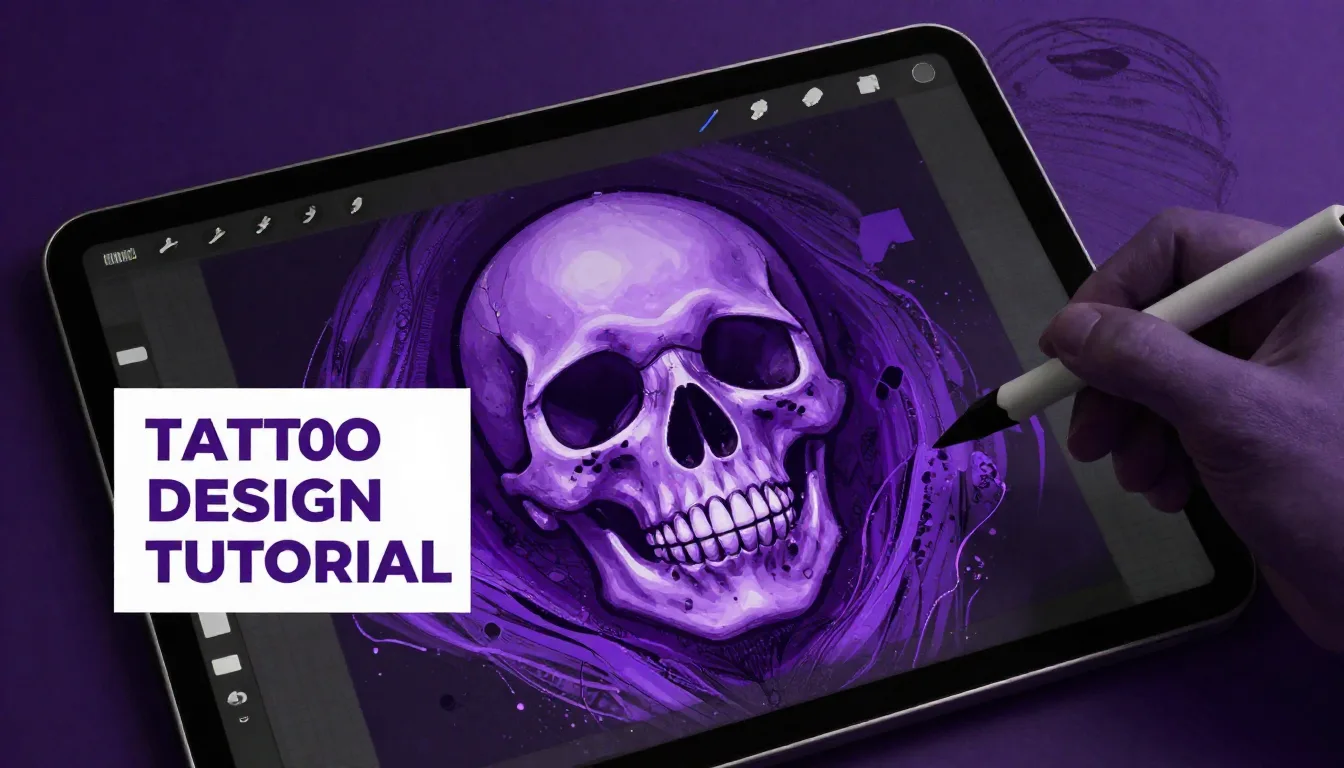
Skulls are a timeless staple in tattoo culture, representing everything from mortality and rebellion to rebirth and strength. Designing them digitally offers unprecedented flexibility, allowing you to perfect your linework, experiment with shading, and prepare flawless stencils before ink ever touches skin. Whether you are an apprentice building your portfolio or an established artist transitioning to an iPad workflow, this guide will walk you through creating a striking, professional-grade skull tattoo right on your screen.
Setting Up Your Canvas for Tattoo Design
Before you draw a single line, establishing the right canvas settings is crucial for tattoo design. A low-resolution file will result in pixelated stencils, making your job much harder when it comes time to print.
Optimal Dimensions and Resolution
For any tattoo digital art guide, the golden rule is to start large. Open Procreate and create a custom canvas. A standard size of 8x10 inches or 11x14 inches at 300 DPI (Dots Per Inch) is ideal. This high resolution ensures your lines remain incredibly crisp, which is exactly what you need for a clean thermal stencil.
Importing and Organizing References
Don't draw from memory unless you have mastered anatomical proportions. Use the Reference Companion (Actions > Canvas > Reference) to float an image of a real human skull or classic tattoo flash on your screen. This feature allows you to zoom in on complex areas like the cheekbones and nasal cavity without cluttering your primary workspace.
Sketching the Foundation: Proportions and Anatomy
A great tattoo relies on a solid foundation. If the anatomy of the skull is off, no amount of intricate shading will save the design. Let's break down the complex structure of a skull into manageable, basic shapes.
Starting with Basic Shapes
Create a new layer and select a sketching brush, like the default Peppermint or Procreate Pencil. Use a light blue or red color to mimic traditional non-photo sketching pencils. Draw a large circle for the cranium. Next, drop a vertical center line to establish the direction the skull is facing. Add a U-shape for the jawline and horizontal lines to mark the brow ridge, the bottom of the eye sockets, and the teeth line.
Fleshing Out the Details
Drop the opacity of your initial sketch layer to about 30% and create a new layer on top. Now, start refining the shapes. Hollow out the eye sockets (orbits), define the jagged edge of the nasal cavity, and map out the teeth. Pay special attention to the zygomatic arch (cheekbone)—exaggerating this feature slightly often translates beautifully in a classic tattoo style.
Pro Tips for Digital Tattooing
- Use the Symmetry Tool: If you are designing a front-facing skull, turn on the Drawing Guide (Symmetry) to ensure the eye sockets, cheekbones, and jawline are perfectly mirrored.
- Color Code Your Sketches: Use red for the rough anatomical skeleton, blue for refined details, and black for the final ink layer to keep your workflow organized.
- Test Stencil Readability: Periodically zoom out to view the design as a thumbnail. If the design turns into a muddy blob from afar, you need to simplify your linework.
Refining the Line Art
In this phase of our procreate tattoo tutorial, we will lay down the bold, unforgiving lines that will eventually become the physical tattoo. Linework is the backbone of any traditional or neo-traditional skull.
Choosing the Right Brush and Settings
Create a new layer above your sketch. Switch to a solid, opaque black. You want a brush that mimics a tattoo liner grouping (like a 7RL or 9RL). The default Studio Pen or Technical Pen works well. To ensure buttery smooth, confident lines, tap on your brush, go to the Stabilization setting, and increase the StreamLine amount to around 30-50%. This will eliminate the natural jitter of your hand.
Line Weight and Hierarchy
Tattooing isn't just about single-weight lines. Use line weight hierarchy to give your skull dimension. Use a thicker brush size for the outer silhouette and major anatomical structures (like the outer edge of the jaw and the brow ridge). Switch to a slightly thinner brush size for internal details like the cracks in the cranium and the individual teeth. This contrast keeps the design readable and dynamic.
Adding Shading: Whip Shading and Stippling
Shading is where your skull design comes to life, shifting from a flat sketch to a menacing, three-dimensional object. If you are aiming for a traditional or blackwork style, mastering digital whip shading is essential.
Establishing the Light Source
Decide where your light is coming from. If the light is hitting the skull from the top right, the deepest shadows will pool in the bottom left of the eye sockets, under the cheekbones, and along the lower jaw. Create a new layer under your line art layer specifically for shading.
Digital Whip Shading Techniques
To replicate the look of a magnum needle dragging across the skin, you need a specialized stipple or whip shading brush. Use quick, flicking motions—pressing hard at the beginning of the stroke and lifting off at the end. Build the gradients slowly. The deepest blacks should sit right against your boldest lines, fading smoothly out into the skin breaks. Remember, in tattoo design, negative space (the un-inked skin) is just as important as the shading.
Embellishments: Making the Design Unique
A standalone skull is great, but adding complementary elements can elevate your design from basic flash to a custom masterpiece. This is a crucial step in any comprehensive skull tattoo design tutorial.
Consider framing your skull. Classic additions include a dagger piercing through the top of the cranium, a snake weaving through the eye sockets, or traditional roses framing the jaw. When adding these elements, keep them on separate layers. This allows you to easily resize, rotate, or delete them without ruining your meticulously crafted skull. Use Procreate's Alpha Lock feature on your shading layers to easily colorize specific areas if you decide to add traditional color palettes to your embellishments.
Preparing the Stencil File
Once your design is complete, you need to prep it for the thermal printer. Hide your shading and sketch layers so only the crisp black line art remains. If you've used different line weights, they should translate perfectly. Go to the Actions menu, tap Share, and export the file as a high-quality JPEG or PDF to print your stencil. You can also export a fully shaded version to show your client exactly what the finished piece will look like.
Frequently Asked Questions
How do I prevent my line art from looking pixelated when printed?
Always ensure your initial canvas is set to at least 300 DPI (Dots Per Inch). If you draw on a 72 DPI canvas, it will look fine on your iPad screen but will become heavily pixelated and unusable when printed as a stencil.
Can I design symmetrical tattoos easily in Procreate?
Yes! Go to Actions > Canvas > Turn on Drawing Guide. Then tap Edit Drawing Guide, select Symmetry, and ensure 'Assisted Drawing' is turned on for your current layer. Everything you draw on one side will perfectly mirror to the other.
What is the best way to practice whip shading digitally?
Find a good digital stipple brush that has pressure sensitivity mapped to opacity and size. Practice making quick, sweeping "C" shapes, lifting your Apple Pencil off the screen at the end of the stroke to create a smooth fade from dark to light.
Should I shade on the same layer as my line art?
Never! Always keep your line art on the top layer and do your shading on separate layers underneath. This preserves your crisp outlines and allows you to easily isolate the line art layer later to print your tattoo stencil.
Mastering digital tattoo design takes practice, but having the right assets can dramatically speed up your workflow. If you want to take your linework and whip shading to the next level, be sure to explore the ProcreateTools app. It is packed with free brushes, specialized tattoo liners, and stipple sets specifically designed to help artists translate their digital sketches into incredible real-world tattoos.